TL;DR
- Why chat UX is a first-class concern in enterprise AI systems
- Session management, folders, search, and file handling features
- Power user workflows and customization options
The best AI in the world fails if users can't organize their work.
I've seen this pattern repeatedly: impressive demo, unusable product. The team focuses all their energy on the AI pipeline and treats the user interface as an afterthought. Users get frustrated, adoption stalls, and the project gets shelved.
SemanticStudio takes the opposite approach. The chat experience is a first-class concern, not a wrapper around an API.
Why Chat UX Matters
When you're building an enterprise AI assistant, your users will:
- Have dozens to hundreds of conversations
- Work on multiple projects simultaneously
- Upload various documents for context
- Need to find past conversations weeks later
- Want to customize their experience
If your system doesn't support these workflows, it doesn't matter how good your RAG is. Users will abandon it for something that does.
Chat Experience Features
Click each feature to explore what SemanticStudio offers
Session Management
Every conversation is a session you can organize, search, and revisit
- Create unlimited chat sessions
- Pin important sessions to the top
- Full conversation history preserved
- Search across all sessions
Let me walk you through each feature in detail.
Session Management
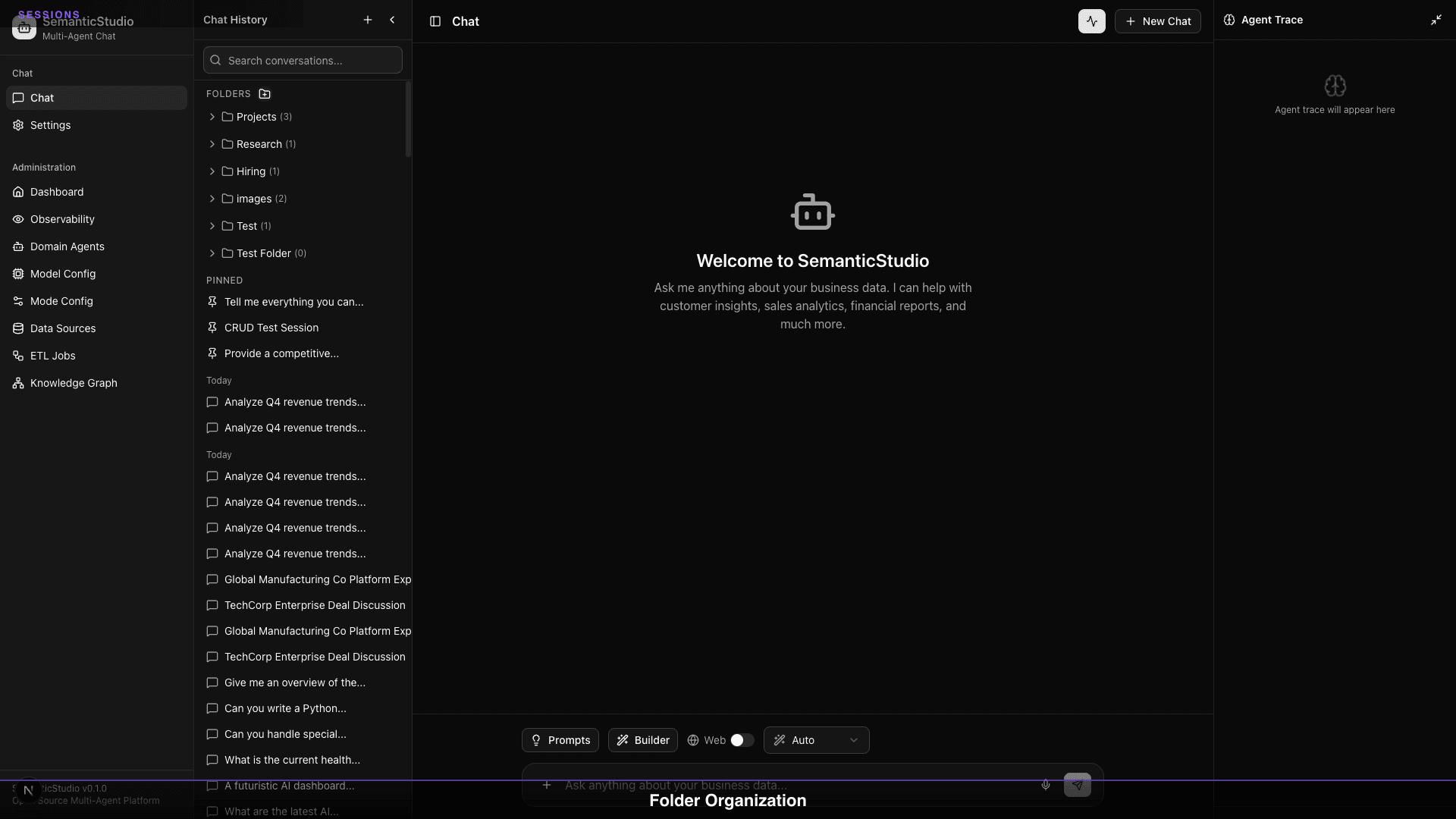
Every conversation in SemanticStudio is a session. Sessions are persistent, searchable, and organized.
Creating Sessions
Click "New Chat" to start a fresh session. Each session gets:
- A unique identifier
- Automatic timestamp
- Full conversation history
- Associated files and context
Sessions persist until you delete them. No conversation is ever lost.
Pinning Important Sessions
Some conversations matter more than others. Pin them to keep them at the top of your list:
- Ongoing projects
- Reference conversations
- Frequently accessed topics
Pinned sessions appear in a dedicated section above your other sessions.
Search Across Sessions
Looking for that conversation from last month? Search works across:
- Session titles (auto-generated or custom)
- Conversation content
- Uploaded file names
Type a few keywords, and SemanticStudio surfaces relevant sessions instantly.
Organization with Folders
As your usage grows, a flat list of sessions becomes unmanageable. Folders solve this.
Creating Folder Structures
Create folders for:
- Projects (Q1 Analysis, Product Launch, Customer Research)
- Topics (Financial Reports, HR Questions, Technical Support)
- Time periods (January 2026, Sprint 23)
- Clients or stakeholders
There's no limit on folder depth—organize however makes sense for your work.
Moving Sessions
Drag and drop sessions between folders. Or right-click to move via menu.
Sessions can only live in one folder at a time, but you can reorganize at any point.
File Handling
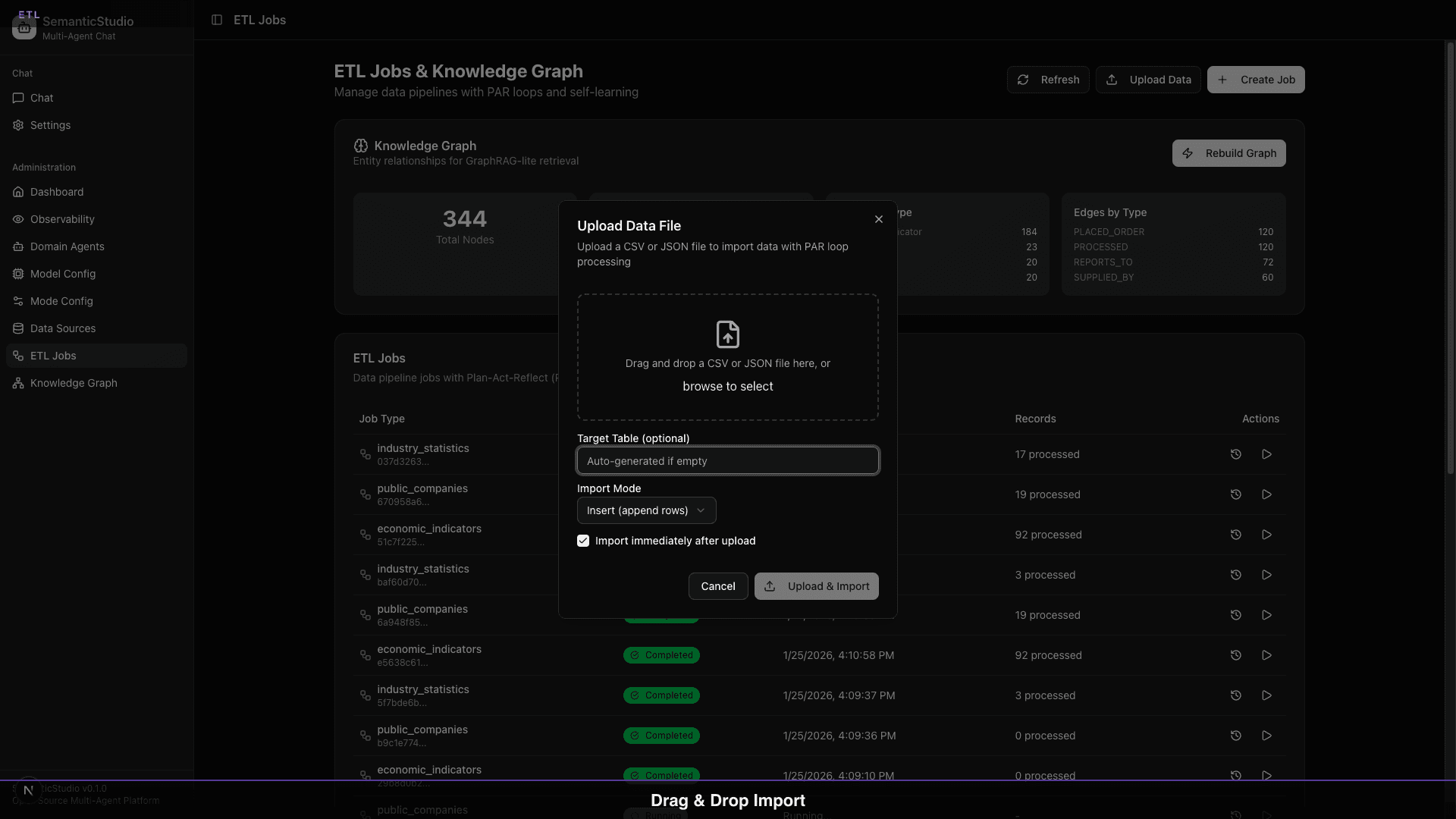
Enterprise work involves documents. SemanticStudio handles them natively.
Supported File Types
Upload any of these directly into a conversation:
| Type | Extensions | What SemanticStudio Extracts |
|---|---|---|
| Documents | PDF, DOCX | Full text, structure preserved |
| Spreadsheets | XLSX, CSV | Tabular data, headers |
| Data | JSON | Structured content |
| Images | PNG, JPG, GIF, WEBP | Available for vision models |
How Files Get Processed
When you upload a file:
- Text extraction pulls content from the document
- Chunking breaks content into retrievable segments
- Embedding generates vectors for semantic search
- Context availability makes the file available to all agents in the session
Files stay associated with the session. You can reference them in any message.
File Context in Conversations
Once uploaded, you can ask:
- "What does the document say about X?"
- "Summarize the key points from the PDF"
- "Compare the data in these two files"
The agents automatically retrieve relevant sections from your uploaded files.
Image Generation
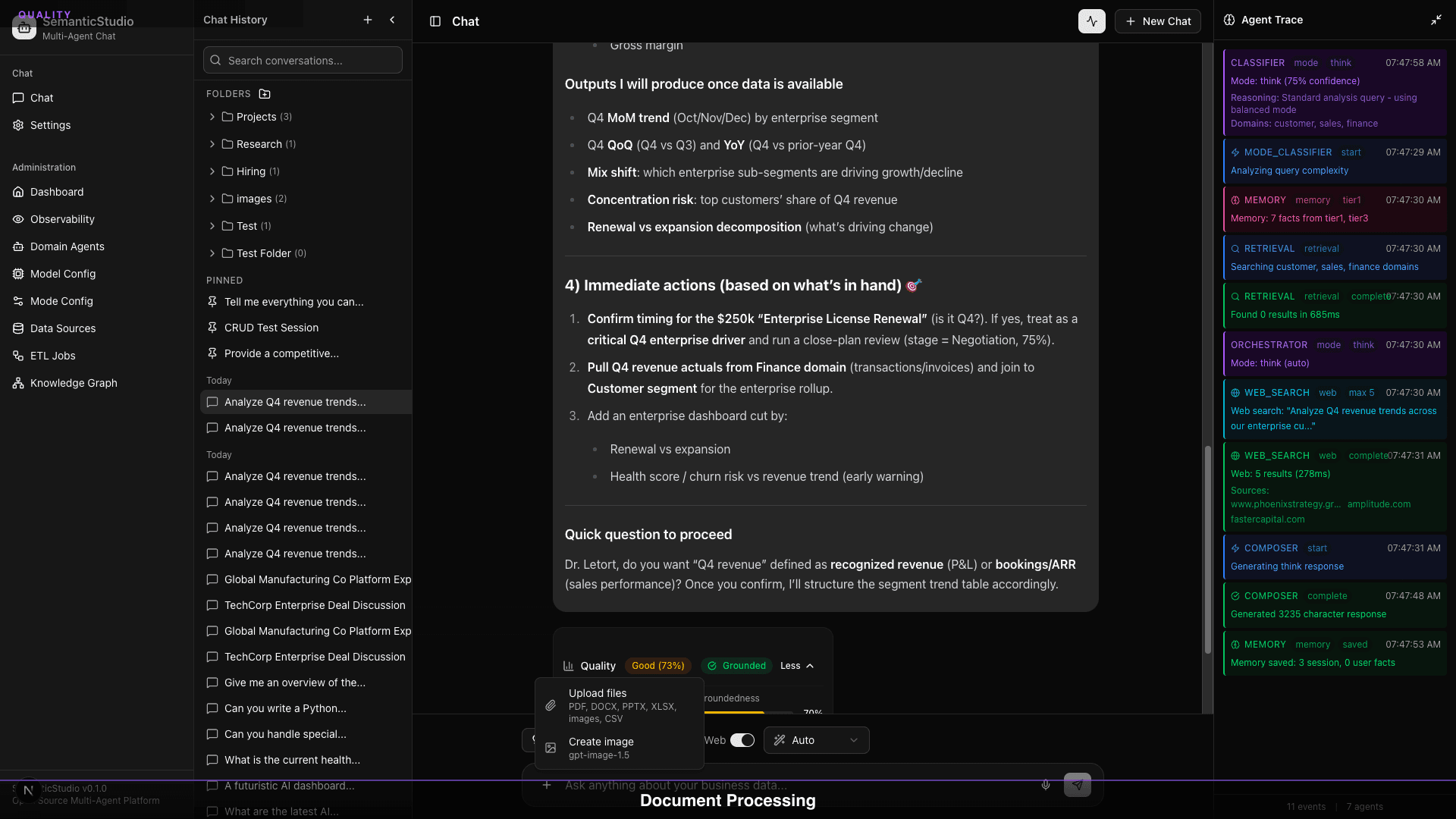
Need a visual? Generate images directly in the chat.
How It Works
- Click the image icon in the input area
- Describe what you want
- SemanticStudio generates the image inline
Generated images are saved to your session history. Download them or reference them in future messages.
Model Configuration
Image generation uses configurable models (default: GPT-Image-1.5). Admins can:
- Change the default model
- Adjust generation parameters
- Enable or disable the feature entirely
User Preferences & Settings
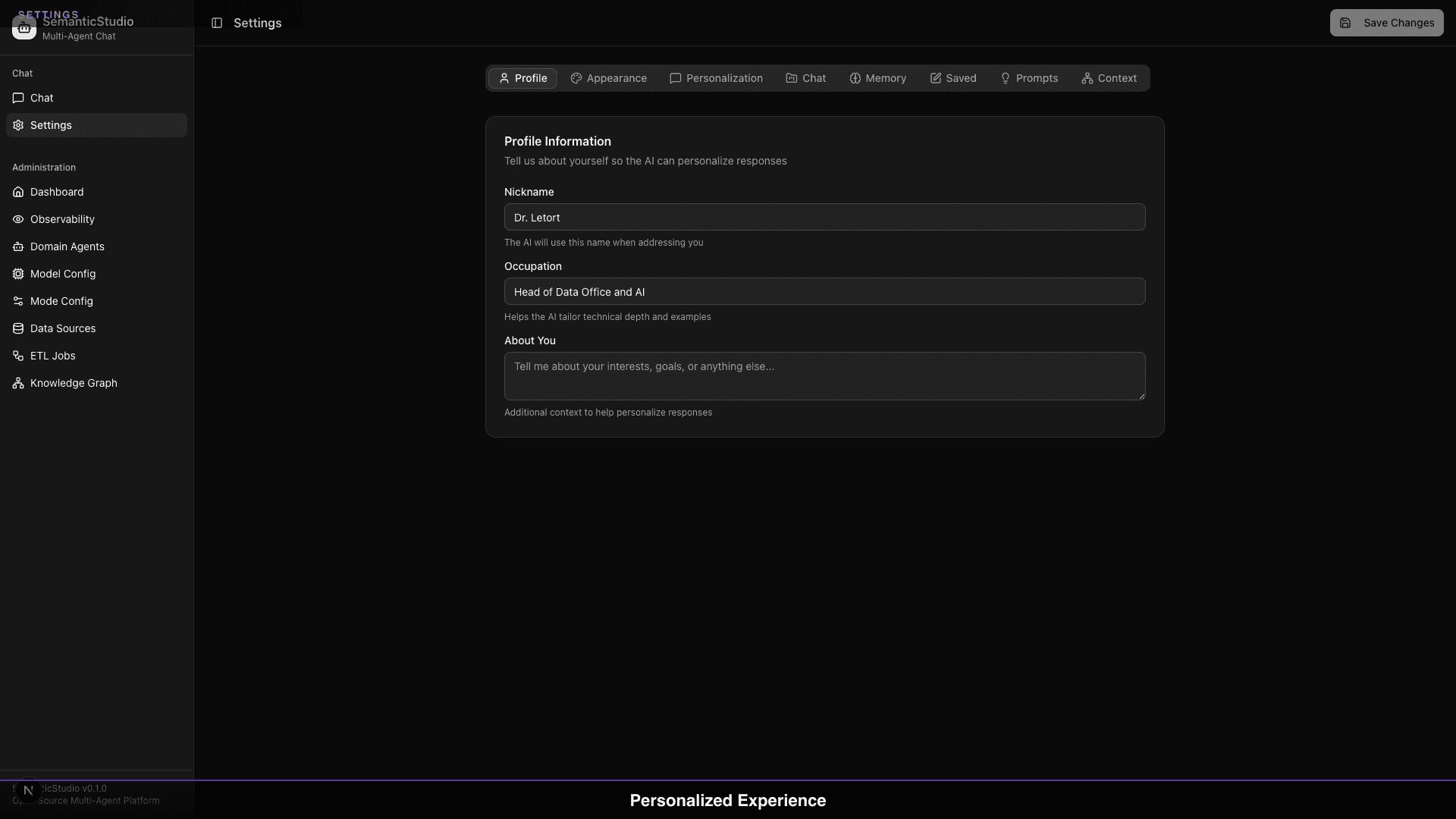
Every user has their own preferences. SemanticStudio respects that.
Available Settings
Profile Information
- Nickname (how the AI addresses you)
- Occupation (tailors technical depth)
- About you (personalizes responses)
Appearance
- Theme selection
- Display density
- Font preferences
Chat Preferences
- Default mode (Quick, Think, Deep, Research)
- Memory tier defaults
- Web search toggle
Personalization
- Communication style preferences
- Technical depth preferences
Memory Preferences
Control what SemanticStudio remembers about you:
- Working Context: Always on (required for coherent conversation)
- Session Memory: Enable to remember facts within a session
- Long-term Memory: Enable to remember facts across sessions
- Saved Memories: Explicitly saved information
Turn off long-term memory if you want a fresh start every session.
Power User Features
For users who live in SemanticStudio, we've built shortcuts and efficiency features.
Keyboard Shortcuts
| Shortcut | Action |
|---|---|
⌘ + K | Quick command palette |
⌘ + N | New session |
⌘ + / | Focus search |
⌘ + 1-4 | Switch modes |
Copy & Share
- Copy any response to clipboard
- Copy with markdown formatting preserved
- Share session links (when enabled)
Session Actions
Right-click any session for:
- Rename
- Move to folder
- Pin/Unpin
- Delete
- Export as markdown
Design Philosophy
The SemanticStudio chat experience follows a few principles:
1. Organization Scales with Usage
A new user with 5 sessions doesn't need folders. A power user with 500 sessions does. The interface adapts—simple by default, powerful when needed.
2. Nothing Gets Lost
Every conversation, every file, every generated image is preserved. Search surfaces anything. Delete only when intentional.
3. Context Travels with You
Upload a file once, reference it anywhere in the session. Pin a session, and it stays visible. Set preferences once, and they persist.
4. Defaults Are Smart, Overrides Are Easy
The system picks sensible defaults (mode, memory tiers, search settings), but every default can be changed per-session or globally.
What's Next
The chat experience is the surface. Underneath, there's a sophisticated multi-agent system that routes your queries, retrieves relevant context, and generates responses.
Next up: Part 3 — 28 Domain Agents, where we'll explore how specialization at scale actually works.
Building SemanticStudio
Part 2 of 8