TL;DR
- Multi-provider LLM support: OpenAI, Anthropic, Ollama—mix and match by role
- Five configurable modes (including Auto) with full parameter control
- Cost vs. quality tradeoffs: tune max results, graph hops, memory tiers per mode
Most RAG systems give you one model, one mode, and hope it works.
SemanticStudio gives you full control: configure every model role, tune every mode parameter, and mix providers as needed. The cost vs. quality tradeoff is yours to make.
Multi-Provider LLM Support
You're not locked into one provider. SemanticStudio supports:
- OpenAI: GPT-5.2, GPT-5-mini, o3-deep-research
- Anthropic: Claude models
- Ollama: Local models for private data
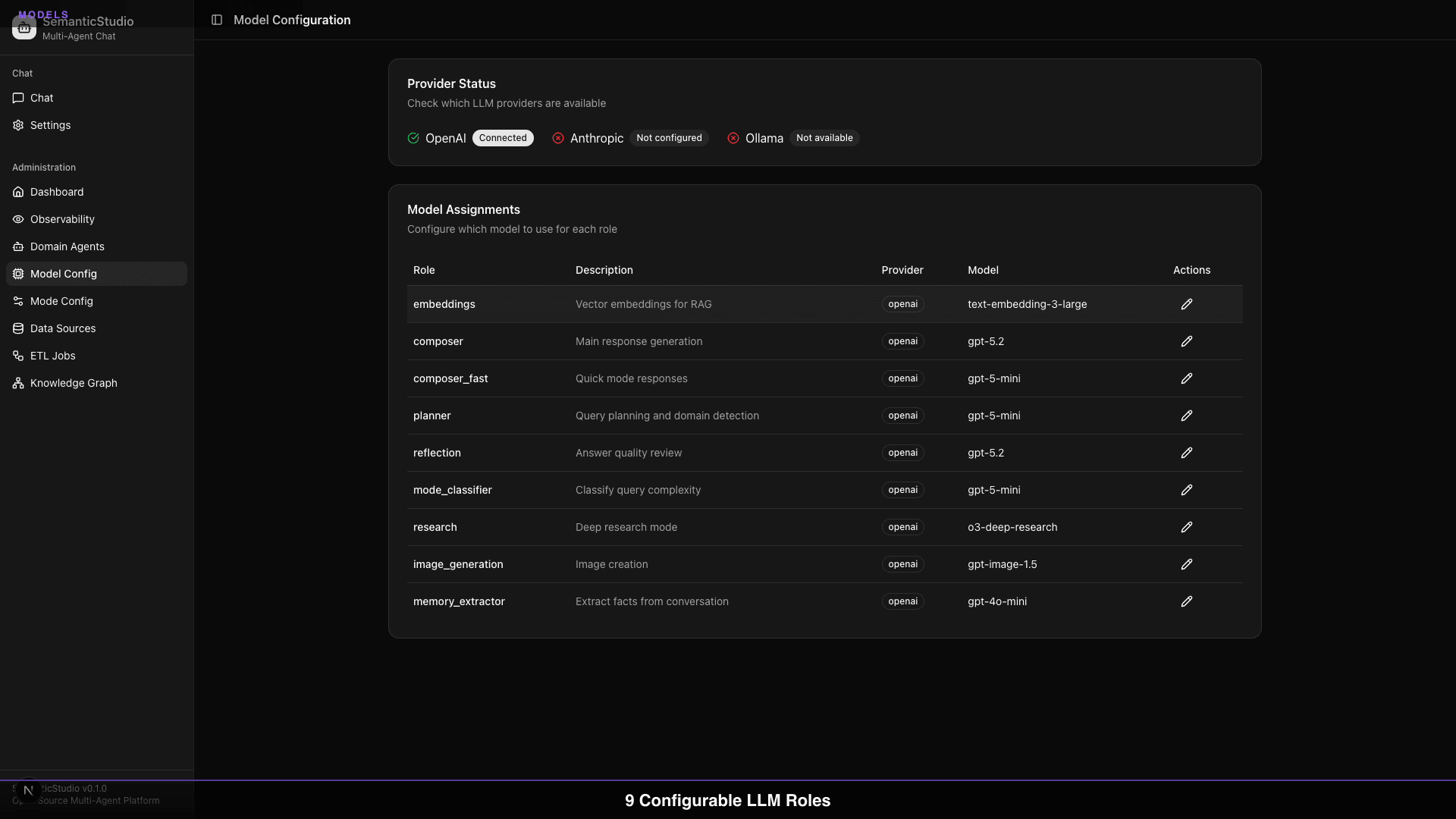
Provider Status
The admin dashboard shows provider availability:
- OpenAI: Connected, API key configured
- Anthropic: Not configured (add API key to enable)
- Ollama: Not available (requires local setup)
You can run SemanticStudio with any combination of providers.
Model Role Configuration
SemanticStudio uses different models for different roles. Each role can be configured independently:
Model Roles
| Role | Purpose | Default Model |
|---|---|---|
| Embeddings | Vector embeddings for RAG | text-embedding-3-large |
| Composer | Main response generation | gpt-5.2 |
| Composer Fast | Quick mode responses | gpt-5-mini |
| Planner | Query planning and domain detection | gpt-5-mini |
| Reflection | Answer quality review | gpt-5.2 |
| Mode Classifier | Classify query complexity | gpt-5-mini |
| Memory Extractor | Extract facts from conversation | gpt-5-mini |
| Research | Deep research mode | o3-deep-research |
| Image Generation | Image creation | gpt-image-1.5 |
Why Separate Roles?
Different tasks have different requirements:
- Embeddings: Need consistency, not creativity
- Composer: Need quality and reasoning
- Planner: Need speed, handles high volume
- Research: Need depth, can afford latency
By separating roles, you optimize each for its specific purpose.
Mixing Providers
You can mix providers per role:
Embeddings: OpenAI (text-embedding-3-large)
Composer: Anthropic (Claude)
Planner: OpenAI (gpt-5-mini)
Research: OpenAI (o3-deep-research)
Memory Extractor: Ollama (llama-3)  ← Private processing
Use Ollama for sensitive operations that shouldn't leave your infrastructure.
Mode Configuration Deep Dive
SemanticStudio has five modes, each fully configurable:
4 Configurable Modes
Every parameter adjustable. Cost vs. quality, your call.
| Parameter | Quick | Think | Deep | Research |
|---|---|---|---|---|
| Max Results | 5 | 15 | 30 | 50 |
| Graph Hops | 0 | 1 | 2 | 3 |
| Memory Tiers | Tier 1 only | Tiers 1-2 | All tiers | All tiers |
| Reflection | Disabled | Enabled | Enabled | Enabled |
| Clarification | Disabled | Disabled | Disabled | Enabled |
| Response Model | gpt-5-mini | gpt-5.2 | gpt-5.2 | o3-deep-research |
Think Mode
Balanced approach for standard questions
Pro tip: Start with Think mode for most queries. Use Quick for simple lookups, Deep for analysis, Research for investigations.
Auto Mode (Default)
Use case: New users, general queries where optimal mode isn't obvious
How it works:
- LLM classifier analyzes query complexity, intent, and scope
- Automatically selects Quick, Think, Deep, or Research
- Returns confidence score with selection
Auto mode is the default for new users. It removes the cognitive load of choosing a mode while still providing optimal responses.
Quick Mode
Use case: Simple factual queries, lookups, definitions
Default settings:
- Max Results: 5
- Graph Hops: 0 (entity match only)
- Memory Tiers: Tier 1 only
- Reflection: Disabled
- Response Model: gpt-5-mini
Quick mode is optimized for speed. Sub-second responses, minimal token usage.
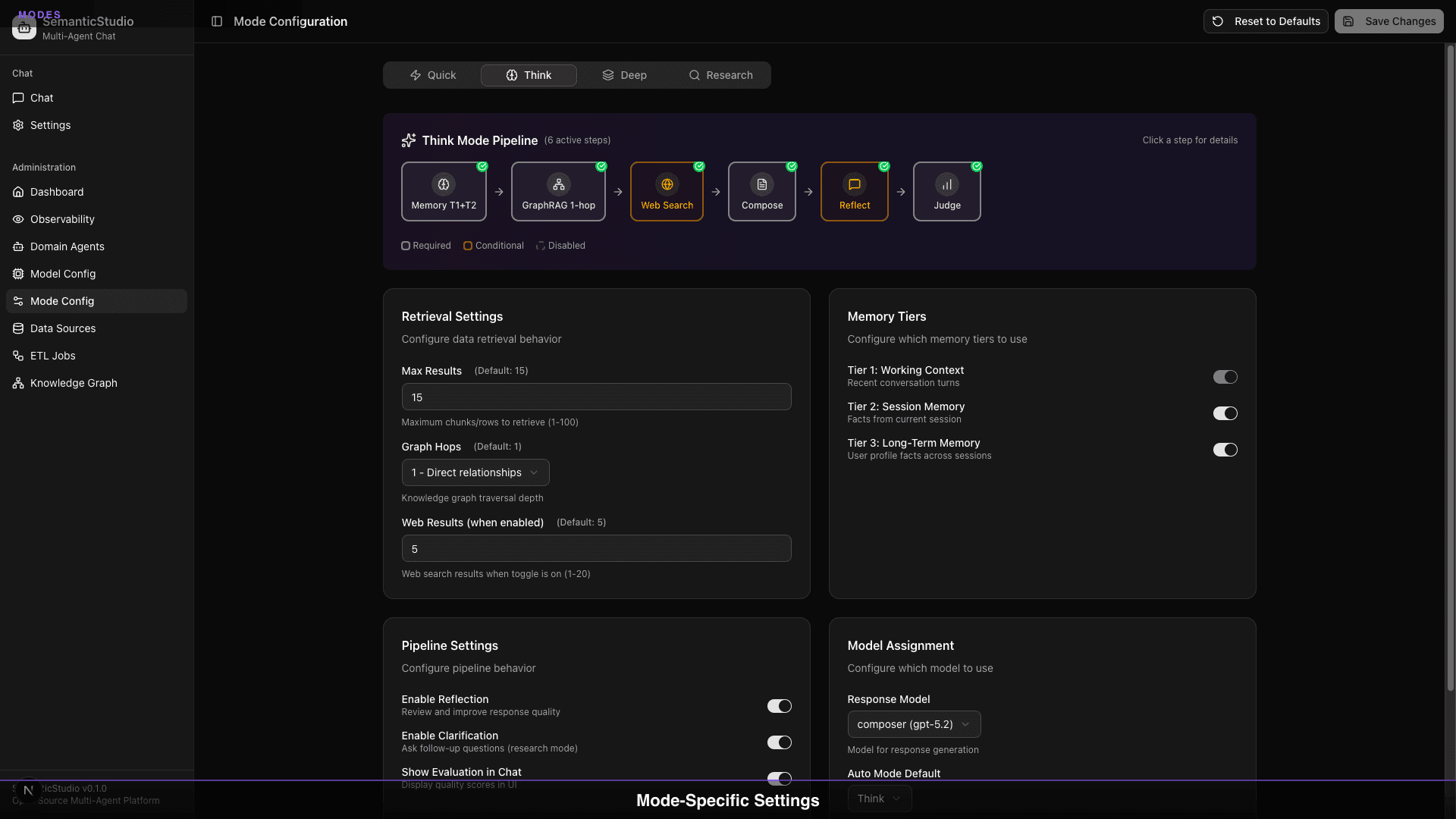
Think Mode
Use case: Standard questions, balanced approach
Default settings:
- Max Results: 15
- Graph Hops: 1 (direct relationships)
- Memory Tiers: Tiers 1-2
- Reflection: Enabled
- Response Model: gpt-5.2
Think mode is the default for most queries. Good quality, reasonable latency.
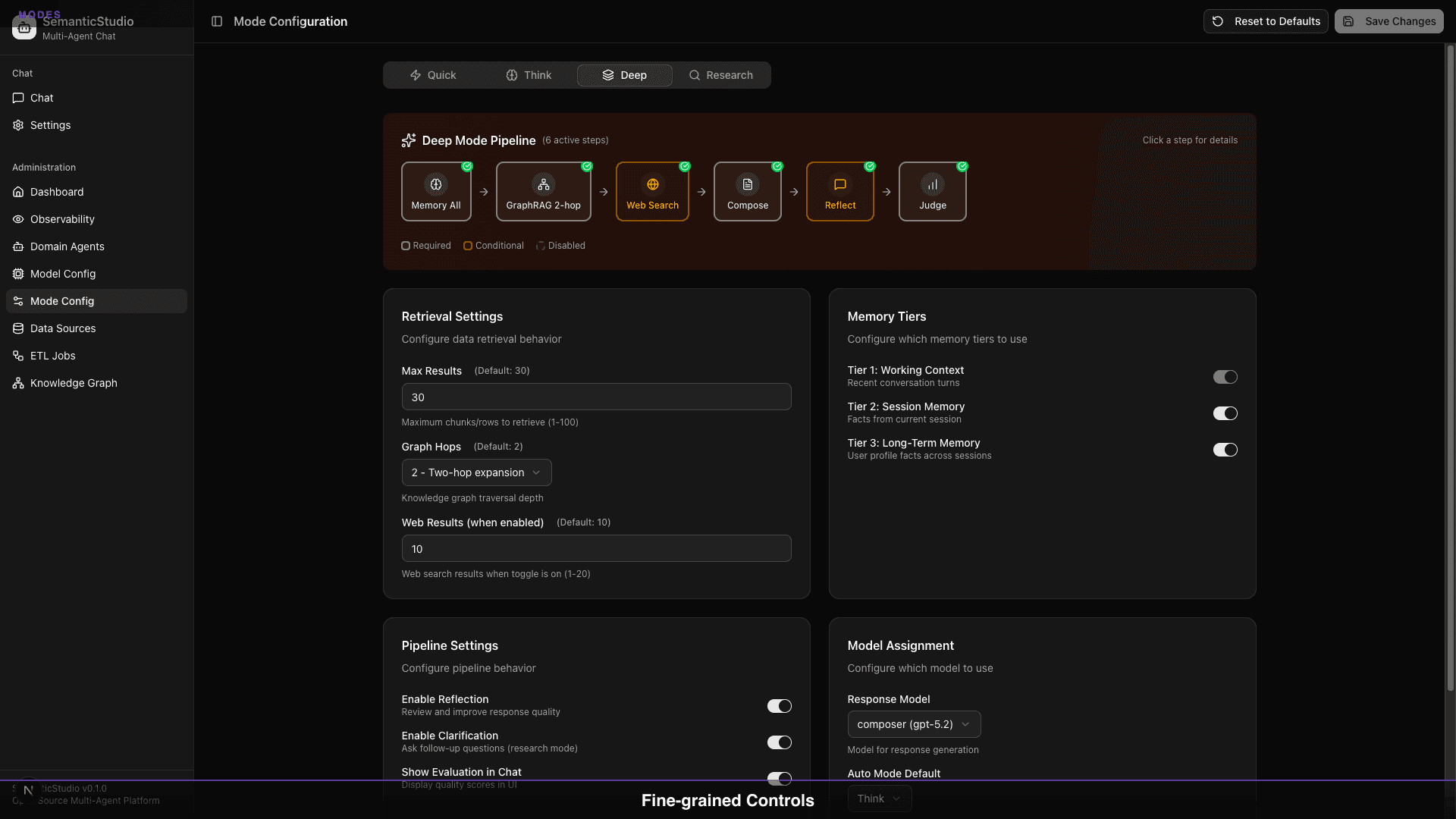
Deep Mode
Use case: Complex analysis, multi-faceted questions
Default settings:
- Max Results: 30
- Graph Hops: 2 (extended network)
- Memory Tiers: All tiers
- Reflection: Enabled
- Response Model: gpt-5.2
Deep mode retrieves more context and reasons more thoroughly.
Research Mode
Use case: Investigations, comprehensive research
Default settings:
- Max Results: 50
- Graph Hops: 3 (full exploration)
- Memory Tiers: All tiers
- Reflection: Enabled
- Clarification: Enabled
- Response Model: o3-deep-research
Research mode can ask clarifying questions and explore extensively.
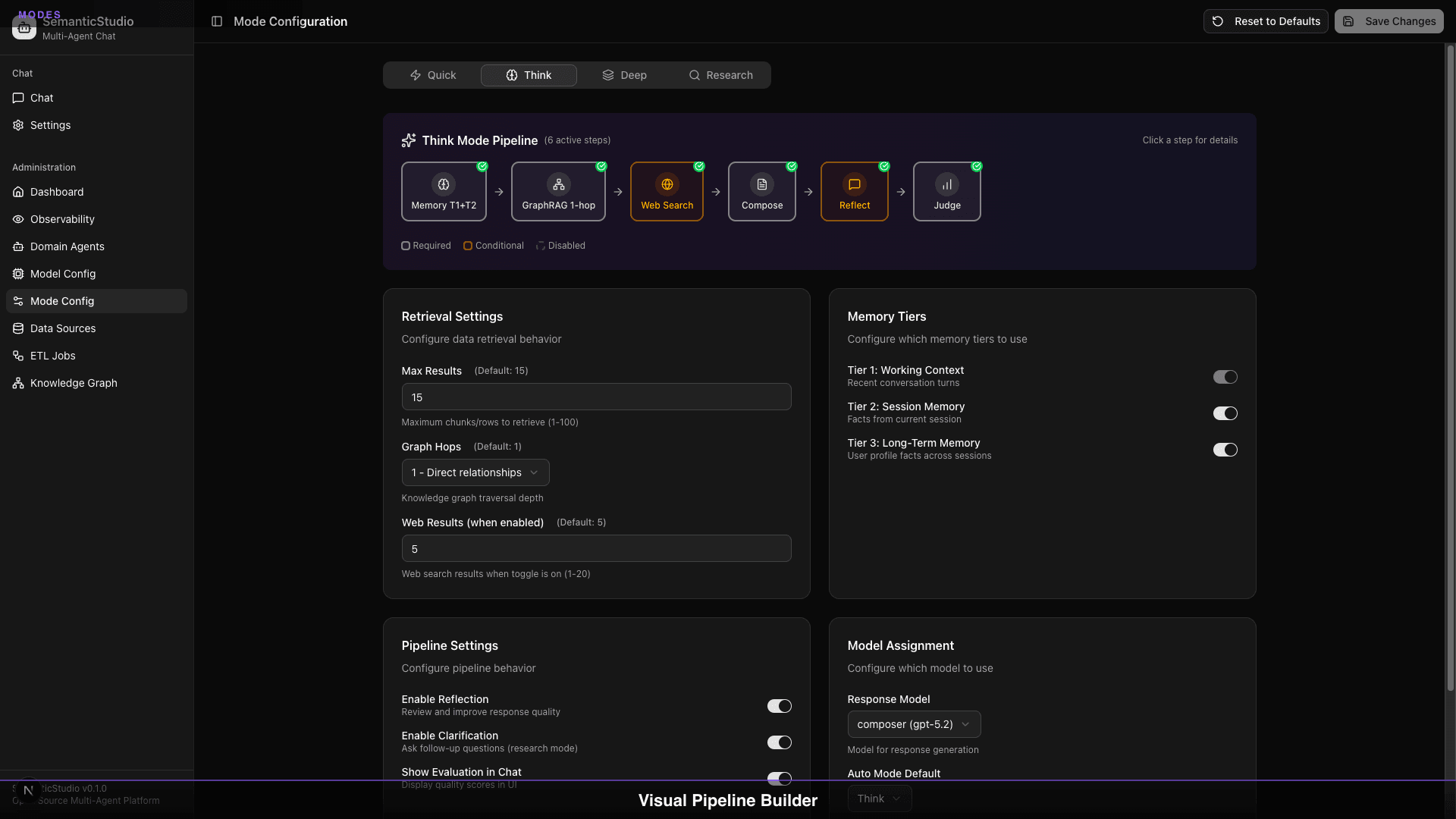
The Pipeline Visualization
Each mode shows its pipeline—the steps from query to response:
Memory T1+T2 → GraphRAG 1-hop → Web Search → Compose → Reflect → Judge
Pipeline steps are:
- Required: Always runs (green badge)
- Conditional: Runs if conditions met (orange badge)
- Disabled: Won't run in this mode (gray)
The visualization helps you understand exactly what happens for each query.
Retrieval Settings
Each mode configures retrieval behavior:
Max Results
How many chunks to retrieve from the vector store:
- Quick: 5 (minimal context)
- Think: 15 (balanced)
- Deep: 30 (extensive)
- Research: 50 (comprehensive)
More results = more context = better grounding, but higher cost.
Graph Hops
How far to traverse the knowledge graph:
- 0 hops: Entity match only
- 1 hop: Direct relationships
- 2 hops: Second-degree connections
- 3 hops: Full exploration
More hops = discovers more relationships, but adds latency.
Web Results (when enabled)
When web search is toggled on:
- Quick: 3 results
- Think: 5 results
- Deep: 8 results
- Research: 12 results
Pipeline Settings
Enable Reflection
When enabled, the system reviews its own response:
- Generate initial response
- Reflection model evaluates quality
- Revise if issues found
- Return improved response
Adds latency but improves accuracy.
Enable Clarification
Research mode only. When enabled:
- Analyze query for ambiguity
- Ask clarifying questions if needed
- Use answers to refine search
- Generate comprehensive response
Show Evaluation in Chat
Display quality scores inline with responses:
- Relevance: Does it answer the question?
- Groundedness: Are claims supported?
- Coherence: Is it logical and clear?
- Completeness: Does it cover the scope?
Useful for testing and quality monitoring.
Model Assignment per Mode
Each mode can use a different response model:
| Mode | Default Response Model |
|---|---|
| Quick | composer_fast (gpt-5-mini) |
| Think | composer (gpt-5.2) |
| Deep | composer (gpt-5.2) |
| Research | research (o3-deep-research) |
The Auto Mode Default setting determines which mode gets auto-selected.
Performance Tuning
Cost Optimization
To reduce costs:
- Use gpt-5-mini for more roles
- Reduce max results
- Disable reflection for non-critical queries
- Use Quick mode by default
Quality Optimization
To improve quality:
- Use gpt-5.2 or Claude for composer
- Increase max results
- Enable reflection
- Use Think or Deep by default
- Increase graph hops
Latency Optimization
To reduce latency:
- Use gpt-5-mini for fast response
- Reduce max results
- Disable reflection
- Use Quick mode
- Reduce graph hops to 0-1
When to Adjust Settings
Increase max results if:
- Answers are missing relevant information
- Users frequently say "you forgot about..."
- Queries span multiple topics
Increase graph hops if:
- Users ask relationship questions
- "Who worked with..." queries fail
- Connected information isn't discovered
Enable reflection if:
- Response quality is inconsistent
- Hallucinations are occurring
- Accuracy is critical
Switch to Research mode if:
- Questions are investigative
- Users need comprehensive coverage
- Time is less important than thoroughness
What's Next
Models and modes determine how SemanticStudio retrieves and generates. But what it retrieves depends on the memory system—how context persists within and across sessions.
Next up: Part 5 — Memory as Infrastructure, the complete 4-tier memory system.
Building SemanticStudio
Part 4 of 8